
Use allianceboard with Claude
Last updated: November 10, 2026
The allianceboard connector lets Claude work with the alliance data in your allianceboard workspace. Ask in plain language, and Claude finds the partners, contracts, projects and other records you need. At your request it can also create, update and delete records.
Claude acts as you. It sees and changes only what your allianceboard account is allowed to see and change.
The connector works in Claude on the web, in the Claude desktop and mobile apps, and in Claude Code.
What you can do
- Read and search. Partners, organizations, contracts, projects, opportunities, assets, committees, contacts, plan items (goals, deliverables, decisions, payments and risks), key updates, responsibilities, files and links.
- Create and update. The same records, including their custom fields.
- Archive and delete. Records you no longer need.
Example requests:
- Which contracts with our partners expire in the next 90 days?
- Summarize the open risks and the overdue deliverables for the project Test Project.
- Add Test User, test.user@example.com, as a contact for the partner Test Partner.
- Add a key update to the partner Test Partner: the renewal was signed on 3 November.
- Archive the project “Test Project”.
Uploading a file to allianceboard needs a Claude app that can run commands, such as Claude Code.
Before you start
- An allianceboard account with MCP access. The connector uses your existing allianceboard account and does not create one. Your organization also needs API and MCP access in allianceboard. allianceboard turns this on for each organization. If you are not sure whether you have it, ask your allianceboard administrator or contact allianceboard support.
- The Admin or Business Admin role in allianceboard.
- A Claude account. On Claude Team and Enterprise plans, an Owner adds the connector for the organization first. After that, each member connects with their own allianceboard account.
Connect
- In Claude, go to Customize > Connectors. In the desktop app, select Customize in the sidebar, then Connectors.
- Select Discover, search for allianceboard and open its page.
- Select Connect to Claude. If you are an Owner of a Team or Enterprise organization, select Connect for your team first, then Connect to Claude. If you see Request instead, ask an Owner of your Claude organization to add the connector.
- Sign in to allianceboard as you normally do.
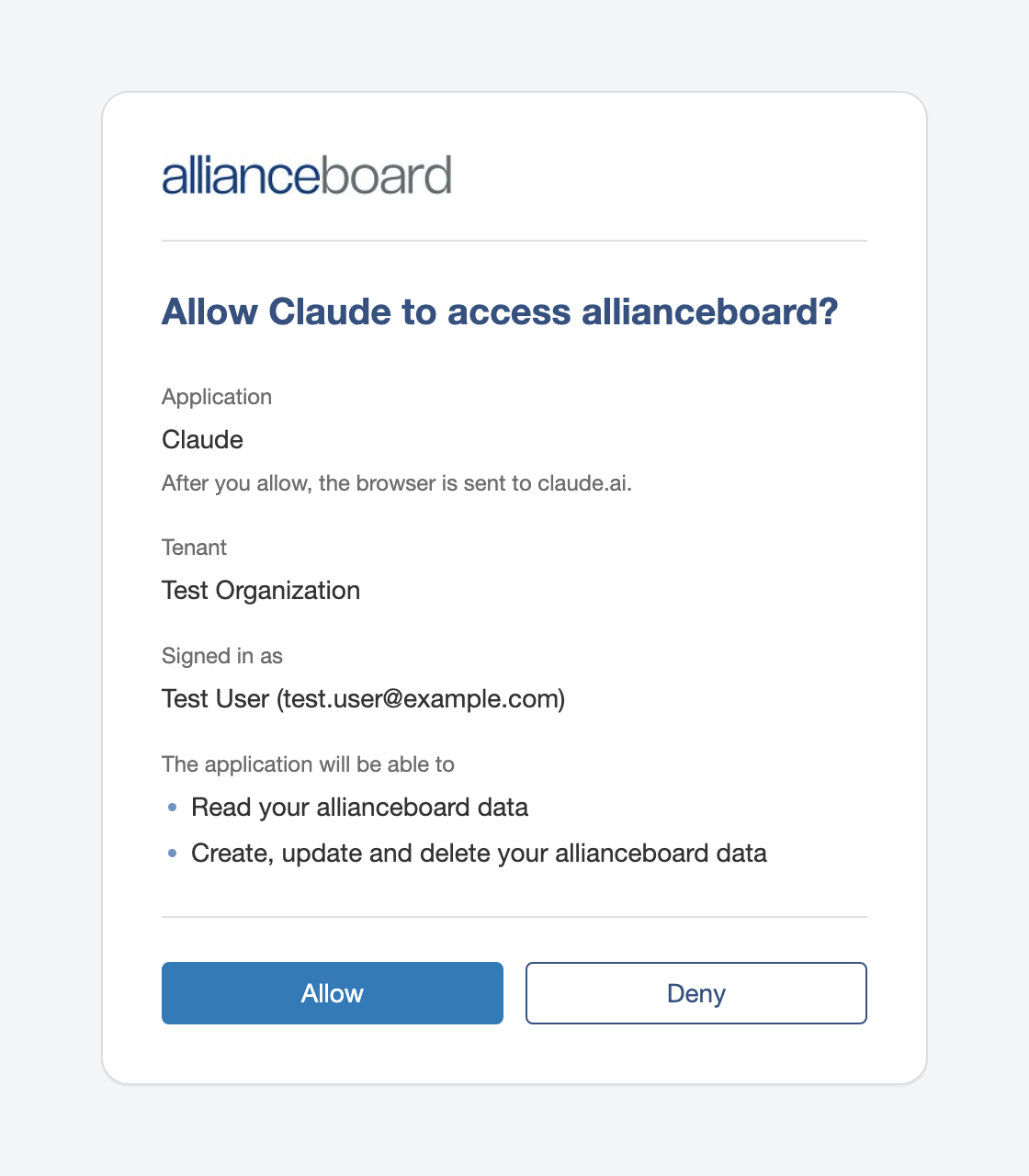
- Review the request. The page shows the application, your allianceboard tenant, the account you are signed in with, and what Claude will be able to do. Select Allow.
- Back in Claude, allianceboard is listed under Your connectors with the status Connected.
Claude Code. Connectors you add in Claude are available in Claude Code when you sign in with the same Claude account.
Connecting by URL. If your organization adds connectors by their address, use https://secure.allianceboard.com/api/mcp.
Use allianceboard in a conversation
- In a chat, select + in the message box, then Connectors, and make sure allianceboard is turned on.
- Ask a question, or describe the change you want.
- If Claude asks for your approval before a change, check what it is about to do, then select Allow once. Whether Claude asks depends on its permission mode, described under Permissions and confirmations.
Permissions and confirmations
- Your permissions apply. Claude works as the account you signed in with. A record you cannot open in allianceboard is not visible to Claude either, and every change is made and logged under your name.
- Claude’s permission mode decides when it asks. You select the mode in the message box. In Manual mode, Claude asks for your approval before each request that creates, updates or deletes data. In Auto mode, Claude does not ask before every change. It reviews each action for safety, blocks what it considers unsafe and runs the rest, so a change or a deletion can happen without a prompt. Auto is the default on several Claude plans. Select Manual if you want to approve every change yourself.
- You choose for each tool. Go to Customize > Connectors, select allianceboard and open Tool permissions. Each tool can be set to Always allow, Needs approval or Blocked. Needs approval makes Claude ask in Manual mode. Blocked applies in every mode, so blocking the write tools makes the connector read-only for you.
- “Always allow” covers deletions too. Creating, updating and deleting go through the same tools. If you select Always allow for them, Claude stops asking in Manual mode before every kind of change, deletions included.
- Owners can set the rules for everyone. On Claude Team and Enterprise plans, an Owner can limit what the connector may do for the whole organization, and members cannot change that. The organization also decides whether Auto mode is available to its members.
For more about the modes, see how Claude checks with you in the Claude Help Center.
Disconnect
- In Claude. Go to Customize > Connectors, select allianceboard and select Disconnect. To take the connector off your account, open the three-dot menu and select Remove.
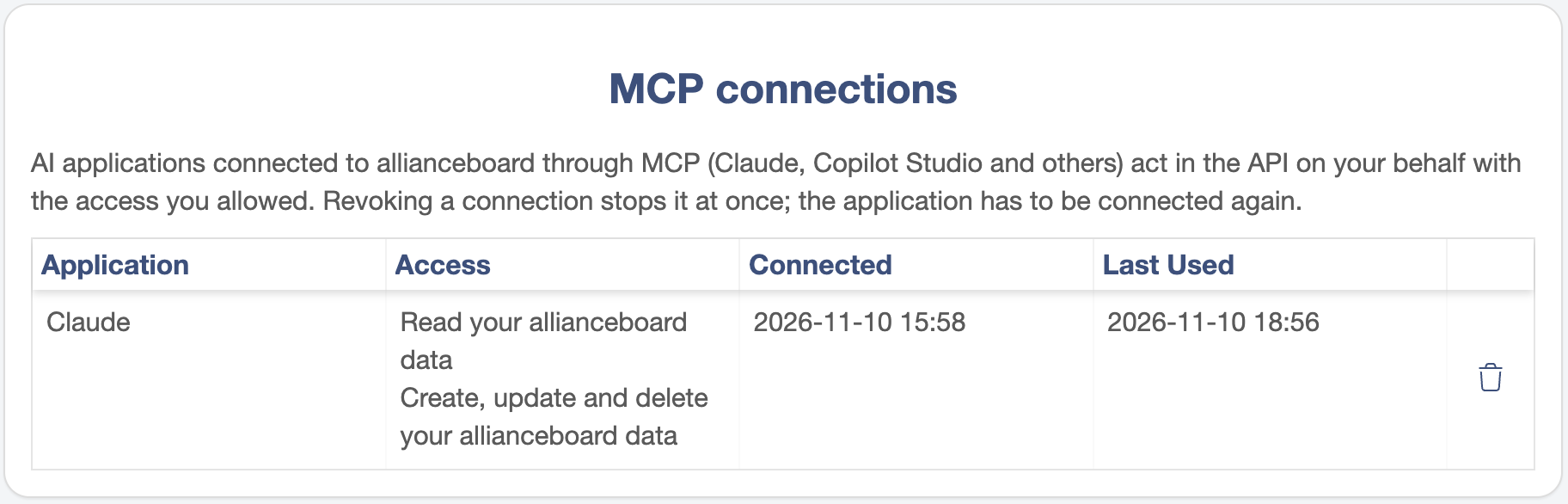
- In allianceboard. Open Settings, select the API tab and find MCP connections. In the row of the application, select the trash icon (Revoke connection) and confirm with Revoke. The application loses access at once. To use the connector again, connect again.
- Unused connections. A connection that is not used for 30 days expires. Connect again to continue.
Troubleshooting
You cannot sign in to allianceboard. The connector opens the regular allianceboard sign-in page. Sign in the same way as you do in allianceboard, with your password or through your organization’s single sign-on. If you forgot your password, select Forgot password? on that page. If you do not have an allianceboard account, ask the allianceboard administrator of your organization.
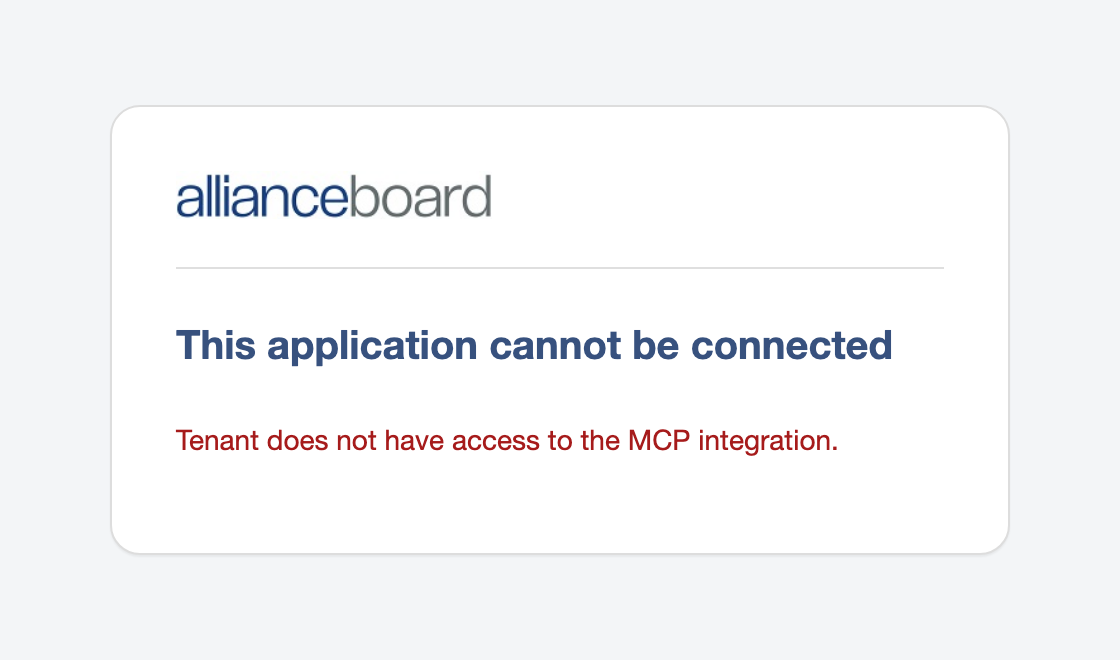
The sign-in page says “This application cannot be connected”. The line under the heading gives the reason:
- Tenant does not have access to the MCP integration. Your organization does not have MCP access yet. Ask your allianceboard administrator, or contact allianceboard support, to turn it on.
- Tenant does not have access to this API. Your organization does not have API access yet. The same people can turn it on.
- Only Admins can perform this action. Your allianceboard role cannot connect an AI application. Ask an Admin of your organization for the Admin or Business Admin role.
- The connection request has expired. Start the connection again from your application. The sign-in page stayed open for too long. Go back to Claude and select Connect to Claude again.
Claude shows “Reconnect”, or says allianceboard is not connected. The connection was revoked, has expired or has lost its access. Select Reconnect and sign in again. If the sign-in page then says the application cannot be connected, see the reasons above.
You see “Request” instead of “Connect to Claude”. Your Claude organization has not added the connector yet. Ask an Owner of your Claude organization.
Claude does not use allianceboard in a chat. Select + in the message box, then Connectors, and turn allianceboard on.
Claude cannot find a record. Claude sees what your account sees. Check that you can open the record in allianceboard, and give Claude its exact name.
A change fails. Read the message Claude shows. It usually names what stopped the change, for example a missing field or a name that is already in use. Correct the request and try again. If the message does not explain the problem, contact support with the details listed under Support.
Claude says the result is too large, or the request took too long. Ask for less at a time: fewer records, a shorter period, or only the fields you need.
Privacy and security
- Sign-in. The connector uses OAuth 2.0. You sign in on allianceboard’s own page, so your password is never typed into Claude or shared with it.
- What Claude receives. Only the data that answers your request, within your allianceboard permissions. It becomes part of your conversation in Claude, where Anthropic handles it under your agreement with Anthropic.
- What allianceboard receives. The requests Claude sends through the connector, not your conversation. allianceboard logs these requests with your user account and the time, for security and traceability.
- Stopping access. You can disconnect at any time, in Claude or in allianceboard.
For more, see the allianceboard Privacy Policy.
Support
Contact allianceboard support. To help us find the problem quickly, include:
- the date and time, with your time zone;
- what you asked Claude and the full message you saw.